
Manage a collective email address – with the Delta Chat team-bot

With a team-bot, your collective can be reached via email, or encrypted via Delta Chat; and you can discuss and reply to the messages in the app.
When you want to reach our band das_synthikat, for example to organize a concert or give us feedback, you will probably write us an email. This is the universal contact channel across people and organizations who don’t share a common messaging app.

Of course, emails are not checked super often – and it’s annoying to switch to the messenger for discussing a specific email, and back to the email client for answering it. That’s why some businesses run ticket systems.

But there is no good solution for small collectives like our band, a horizontal activist group, or a festival orga; and ticket systems usually work in the browser, not on all of your devices. That’s why I programmed team-bot – a small Delta Chat bot which bridges your collective email address into private group chats.

What do incoming messages look like?

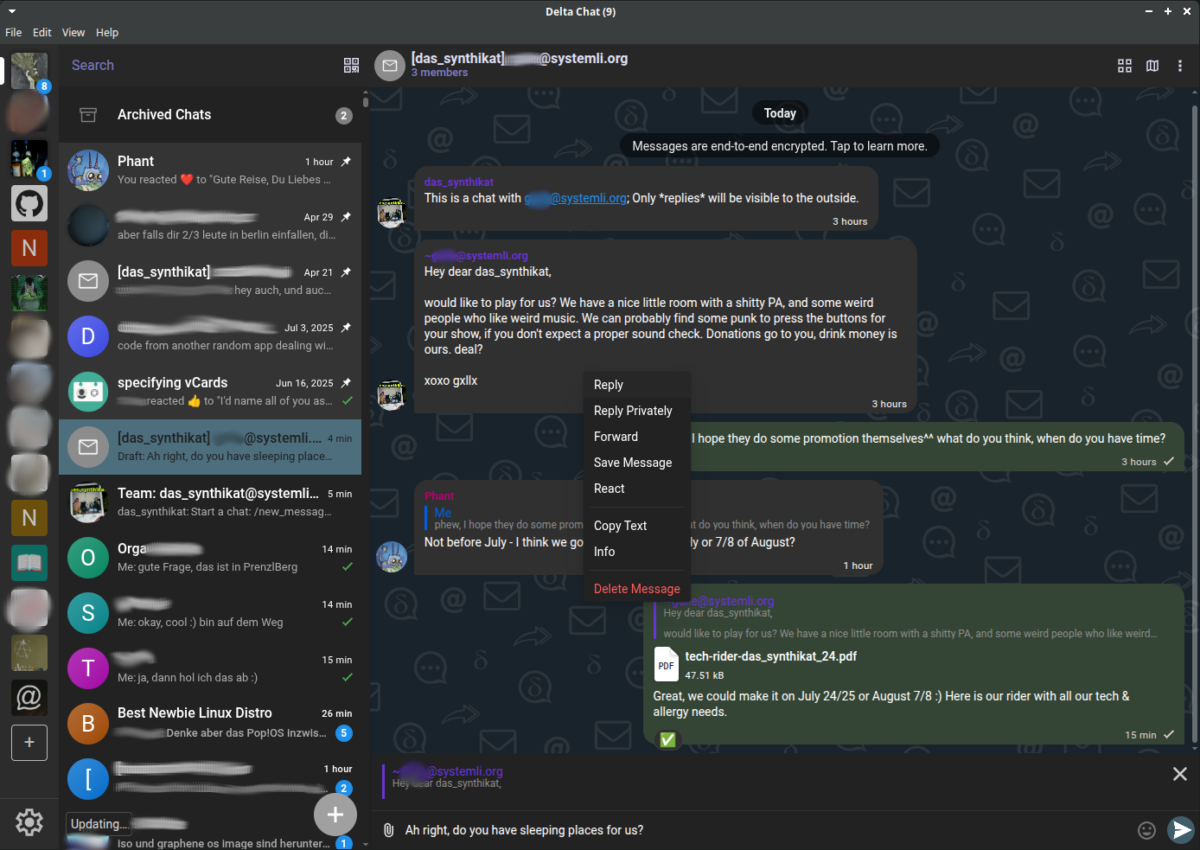
Whenever someone new sends you an email, the team-bot creates a new chat group with your whole team (the relay group). It forwards the email into the relay group, so you can discuss what to do with it. When you have decided what to reply, you can reply to the original message. Then the team-bot sends it to the contact on the outside in its name:

A Delta Chat Desktop Client, with a relay group opened.

The outside contact doesn’t see your individual member’s identities, it just talks to the group. They also don’t see the chatter in between:

The Email the team-bot sent to the outside contact, as it looks like in Thunderbird.

This allows you to spread the responsibility for outside communication more evenly in the group – so the burden does not lie on the shoulders of the one person who always checks the group’s email address.

But I have too many chats already!

There is one relay group for every outside contact; this can be a lot if your team is very busy, and many people try to reach you. It can make sense to create a separate profile in your Delta Chat app for the team-bot chats. In Delta Chat this is just a few clicks:

  • Create a new profile, choose a username so your team can tell who is who.
  • Add your new profile to the existing relay group you need to be part of.
  • Add your new profile to the Team Chat – the one with “Team:” in the beginning.
  • Then you can leave the Team Chat with your old profile; you will be removed from all relay groups, so that new messages only appear in your new profile.

If you don’t want to be interrupted by the team-bot, you can now just mute the new profile, and focus on other things. Just don’t forget to unmute it when you want to share the responsibility again 😉

The Team Chat: manage your group

The Team Chat is the heart of your group – when a new relay group is created, the bot will add all members of the Team Chat to it. This ensures that all of you stay in the loop about new requests.

If someone leaves the Team Chat, the bot will also remove them from every relay group. This ensures that a former member will not get bothered by messages anymore, but also ensures they can’t mess with the collective account.

But a new Team Chat member will not be automatically added to all old relay groups – many of them are not relevant anymore, that would be confusing quickly. If you need the new member to talk to a specific contact, add them to the relay group. (Due to technical limitations, they won’t see old messages, and therefore can’t write to the outside contact before the bot forwards another message to the relay group.)

What else can I do with the team-bot – can I send a new message to others?

In the Team Chat, you can use a wide range of chat commands to control the bot – sending a message to a new contact is one of them:

A Delta Chat Desktop client showing the Team Chat, where a new message was sent via the team-bot.
A Delta Chat Desktop client, the relay group for the new message was just opened.

But you can also use Team Chat commands to generate an invite link, so people can write encrypted to your collective address, with Delta Chat; you can set an avatar and a username so it looks more fancy for them. The avatar isn’t visible for classic email contacts though. Just ask the bot in the Team Chat with /help to learn how you can use it.

How can I create my own collective address?

1. You need an email address and the password for it. If you don’t have a systemli.org invite code or something similar, you can choose an open-signup server at https://chatmail.at/relays. The only disadvantage is, that your contacts will not be able to write to you unencrypted, they will need to use the Delta Chat invite link of your team-bot.

2. You need a server – that means, a PC which is online most of the time. It does not have to be reachable from the Internet, but it needs a connection to the mail server it is supposed to use.

3. You need to install the team-bot to it: it requires some basic command line skills, you can follow the setup instruction on GitHub. I recommend deploying it with pyinfra, this will deploy a systemd user unit, so the bot runs in the background and gets restarted automatically.

If you need help with the setup, feel free to write me 🙂

What if my group doesn’t like it?

If you go back to using your collective email address as you used to, you can just stop/disable the team-bot, and login to the email address with any other mail client like Thunderbird.

The bot will have left a bit of a mess in your mailbox, you will find a lot of encrypted messages (the messages you and the others exchanged in the relay groups and Team Chat). Cleaning that up should be easy with Thunderbird’s search & filter functions; and then you can go back to your old workflows.

I’m happy to hear feedback!

If you decide to try it out, let me know how you like it. I’m open to feedback and feature requests, either via email or in the GitHub issue tracker.

How to keep using Signal Desktop without a phone, with a command line tool

Since recently, Signal warns its Desktop users that their account will deactivate if they don’t turn on their phone again. Supposedly, it’s for “security reasons”. Here is how you can overcome this discriminatory behavior.

Living without a phone is hard enough already. Signal makes it harder, without good reason. If you’ve seen the “Open Signal on your phone to keep your account active” warning before, you know what I mean. So hopefully this guide helps you keeping your Signal Desktop client active, even when Signal complains about your phone being offline for too long.

Continue reading “How to keep using Signal Desktop without a phone, with a command line tool”

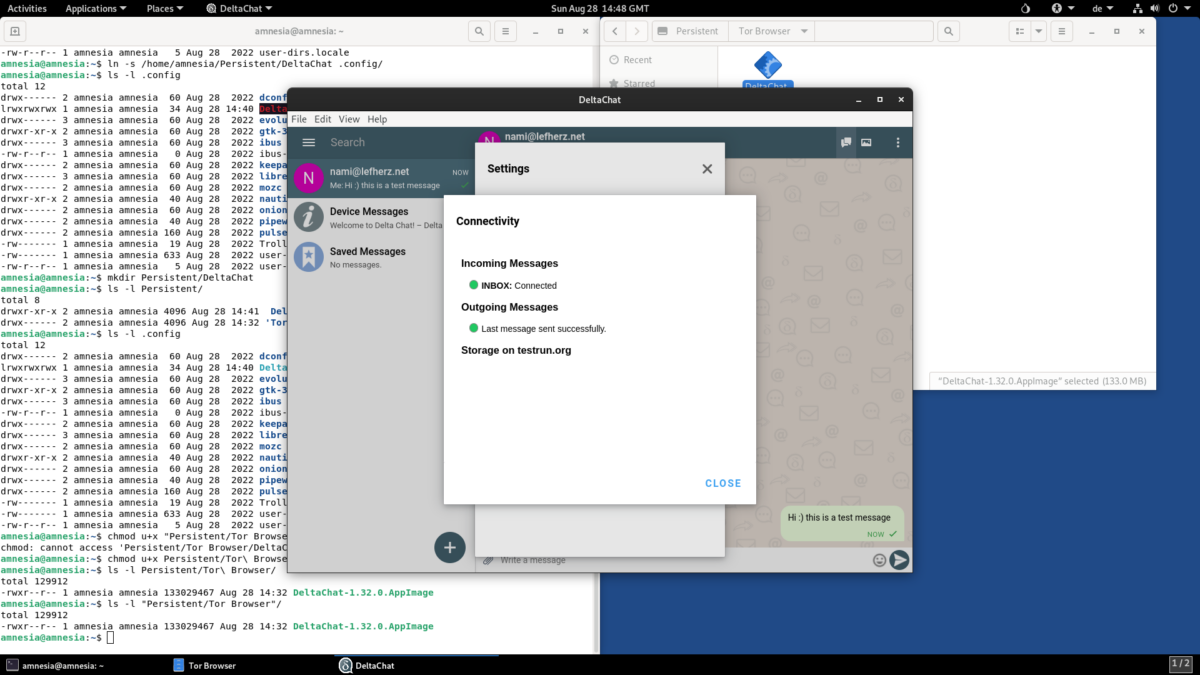
How to Setup Delta Chat on Tails in 5 Steps

Delta Chat is a decentralized messenger. It also supports PGP encryption, secured against MITM attacks. But how to use it on an anonymous Tails stick?

Tails is very useful if you want to be more anonymous by running everything through the tor network; but it is especially interesting for nomad activists who travel without a laptop of their own. This is because of the “Persistent Storage” feature.

Continue reading “How to Setup Delta Chat on Tails in 5 Steps”

Corona-Tests ohne Handynummer machen – Hacktivismus hilft

Wie man mit einem Linux-Befehl die Verschlüsselung von Corona-Testergebnissen knacken kann.

Für Menschen, die in Bayern gemeldet sind, sind PCR-Tests kostenlos – eine der wenigen Corona-Maßnahmen, für die ich dankbar bin. Die Tests haben allerdings ein Datenschutz-Problem, man muss bei der Anmeldung für den Test eine Handynummer angeben.

UPDATE 14.3.2021: die Methode funktioniert seit einigen Tagen nicht mehr, weil die Codes mittlerweile acht Stellen lang sind, und aus Groß- und Kleinbuchstaben statt Zahlen bestehen. Das Entschlüsseln würde dadurch (mit meinem PC) bis zu 47 Jahre dauern – so lange können die wenigsten auf ein Testergebnis warten.

Continue reading “Corona-Tests ohne Handynummer machen – Hacktivismus hilft”

How to Fix Inconsistencies in Encrypted Xubuntu Partitions – or Rescue Data

Every few weeks, the file system of Phant’s laptop gets corrupted. How do you fix a corrupt file system?

Every few weeks, the file system of Phant’s laptop gets corrupted. Maybe at some point it won’t be fixable anymore, but these steps always worked (for now).

Continue reading “How to Fix Inconsistencies in Encrypted Xubuntu Partitions – or Rescue Data”

Autocrypt: How to Allow Automated Encryption in Thunderbird Enigmail

Many Enigmail users have turned off automated email encryption by default. What does this mean and how can you change it?

Enigmail is a Thunderbird-Add-On for mail encryption with OpenPGP – if you read this article, you probably already use it. Enigmail supports the Autocrypt standard since version 2.0.

Continue reading “Autocrypt: How to Allow Automated Encryption in Thunderbird Enigmail”